Wednesday, September 17, 2014

Installing Java on Linux

We had a requirement to install java in Linux machine without using the RPM and below are the steps we have done.I am just putting it here for future reference.

1.    Download the server JRE from oracle.com

2.    Change to the directory in which you want to install.
           For example, to install the software in the /u01/java/ directory, Type:
           cd /u01/java/

3.    Move the .tar.gz archive binary to the current directory.

4.    Unpack the tarball and install Java
           For example,  tar zxvf server-jre-7u65-linux-x64.tar.gz 
           The Java files are installed in a directory called jdk1.7.0_65


    To make this Java installation to be available in a system-wide location such as /usr/bin, you must login as the root user and find the current java installation using command  “$which java”

Remove the existing symbolic link and create new using the below commands.

[soa.admin]$ which java
/usr/bin/java

[soa.admin]$ cd /usr/bin/

To remove the existing symbolic link
[soa.admin]$ rm java

[soa.admin]$ ln -s /u01/java/jdk1.7.0_65/bin/java java

[soa.admin]$ java -version
java version "1.7.0_65"
Java(TM) SE Runtime Environment (build 1.7.0_65-b17)
Java HotSpot(TM) 64-Bit Server VM (build 24.65-b04, mixed mode)

This java version is now available for all the users.


If you would like to set the JAVA_HOME for only for the current session $ export  JAVA_HOME=/u01/java/jdk1.7.0_65

Tuesday, September 16, 2014

Installing and Configuring Oracle HTTP Server 12C in a Standalone Domain

We wanted to install Oracle HTTP Server instance in the DMZ to front-end the web Logic Server hosted in the application layer and hence did the standalone installation.
Launch the installation program by entering the following command: ./fmw_12.1.3.0.0_ohs_linux64.bin


This screen introduces you to the product installer.


Enter the path to an existing Oracle Fusion Middleware Infrastructure Oracle home.


Select Standalone HTTP Server (Managed independently of WebLogic server) if you are installing Oracle HTTP Server in a Standalone domain.


If you want to save these options to a response file, click Save Response File and provide the location and name of the response file


Click Finish to dismiss the installer.


Configuring Oracle HTTP Server in a Standalone Domain


To begin domain configuration, go to ORACLE_HOME/oracle_common/common/bin
./config.sh

Select Oracle HTTP Server (Standalone) - 12.1.3.0 [ohs].


Select Oracle Hotspot JDK.


Specify the system component name


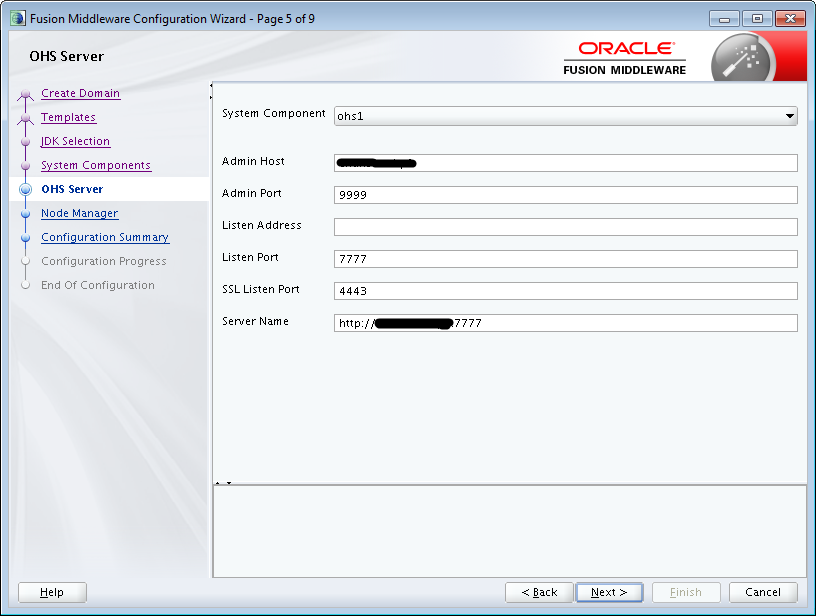
Specify the OHS Server details


Select Per Domain as the Node Manager type and specify the Node Manager credentials.


Review the details of each item on the screen and verify that the information is correct.


Starting the Node Manager & Oracle HTTP Server


Navigate to the DOMAIN_HOME/bin and execute $ nohup sh startNodeManager.sh &
To start the web server run script $ ./startComponent.sh ohs1 in the same location

To test the server enter the url as http://hostname:port


Starting Oracle HTTP Server Instances on a Privileged Port (UNIX Only)


On a UNIX system, TCP ports in a reserved range (typically less than 1024) can only be bound by processes with root privilege. Oracle HTTP Server always runs as a non-root user; that is, the user who installed Oracle Fusion Middleware. On UNIX, special configuration is required to allow Oracle HTTP Server to bind to privileged ports.
To enable Oracle HTTP Server to listen on a port in the reserved range (for example, the default port 80 or port 443) as a process without root privilege, use the following steps.


Saturday, September 13, 2014

Oracle SOA / Weblogic 12C - Register new JDBC drivers

We had a requirement to connect to MS SQL server from Oracle SOA Suite 12C using the microsoft JDBC type 4 driver. But while creating the JDBC connection from weblogic console using the ANY type driver available with 12C it was throwing the below error.

Cannot load driver: com.microsoft.jdbc.sqlserver.SQLServerDriver 

As a workaround we wanted to register  Microsoft’s SQL SERVER Driver (Type 4) Version: 2005 and later. Below are the steps we used to register the missing driver. Although weblogic comes with most of the drivers by default, We can register any third party driver supported by weblogic using the below steps.

Oracle SOA 12C connect to MS SQL server

1. Download the Microsoft JDBC driver  for MS SQL server (sqljdbc4.jar) from http://msdn.microsoft.com/en-us/sqlserver/aa937724.aspx

2.Copy the jar file to the weblogic lib folder ${WL_HOME}/SERVER/lib.The jar file should be available in all the managed servers to which the datasource will be targeted.

3.Add the path to the WEBLOGIC_CLASSPATH in the commEnv.sh located in the ${WL_HOME}/common/bin/commEnv.sh. You can verify if the jar was included to calsspath in the logs during server start up. 

4. To update the list of drivers weblogic navigate to ${WL_HOME}/server/lib and add the below entry to the jdbcdrivers.xml.

<Driver
Database="MS SQL SERVER"
Vendor="Microsoft"
Type="Type 4"
DatabaseVersion="2005 and later"
ForXA="false"
ClassName="com.microsoft.sqlserver.jdbc.SQLServerDriver"
URLHelperClassname="weblogic.jdbc.utils.MSSQL2005JDBC4DriverURLHelper"
TestSql="SELECT 1">
<Attribute Name="DbmsName" REQUIRED="false" InURL="true"/>
<Attribute Name="DbmsHost" REQUIRED="true" InURL="true"/>
<Attribute Name="DbmsPort" Required="true" InURL="true" DefaultValue="1433"/>
<Attribute Name="DbmsUsername" Required="true" InURL="false"/>
<Attribute Name="DbmsPassword" Required="true" InURL="false"/>

</Driver>

Restart the servers and the new driver should be available as below.


Oracle SOA 12C - Migrating projects with DB adapter returning XMLTYPE

While migrating SOA composites containing DB adpaters which calls stored procedures in Oracle database returning XMLTYPE from SOA suite 11g to 12c an error similar to the below may be noticed.


</faultType> 
-<bindingFault xmlns="http://schemas.oracle.com/bpel/extension"> 
-<part name="summary"> 
<summary> 

Exception occurred when binding was invoked. 
Exception occurred during invocation of JCA binding: "JCA Binding execute of Reference operation '*******' failed due to: Object XML conversion error. 
An error occurred while converting a Java object to XML. 
Unable to convert the XSD element ***** whose JDBC type is OPAQUE to a corresponding XML document element. Cause: java.lang.ClassCastException: weblogic.jdbc.wrapper.WrapperSQLXML_oracle_xdb_XMLType cannot be cast to oracle.sql.OPAQUE 
Analyze the error and correct if possible. Contact oracle support if error is not fixable. This exception is considered not retriable, likely due to a modelling mistake. 
". 
The invoked JCA adapter raised a resource exception. 
Please examine the above error message carefully to determine a resolution. 

</summary> 
</part> 
-<part name="detail"> 
<detail> 

weblogic.jdbc.wrapper.WrapperSQLXML_oracle_xdb_XMLType cannot be cast to oracle.sql.OPAQUE 

</detail> 
</part> 
-<part name="code"> 
<code> 

null 

</code> 
</part> 
</bindingFault> 
</bpelFault>
 

The problem is that in 11G the wizard creates the schema elements as SYS.XMLTYPE for XML type parameters whereas in 12C it should be PUBLIC.XMLTYPE.So changing this in database adapter schema will resolve the issue.

For example,

from

<complexType> 
<sequence> 
<element name="P_XML_VALUE" type="db:SYS.XMLTYPE" db:index="2" db:type="Opaque" minOccurs="0" nillable="true"/> 
</sequence> 
</complexType>

to


<complexType> 
<sequence> 
<element name="P_XML_VALUE" type="db:PUBLIC.XMLTYPE" db:index="2" db:type="Opaque" minOccurs="0" nillable="true"/> 
</sequence> 
</complexType>


Wednesday, June 4, 2014

Installing Oracle Enterprise Repository

We had a requirement of setting up oracle enterprise repository for SOA governance. Below are the steps for single node installation on weblogic server.


Oracle WebLogic Server Installation

Run the installer as follows:
-bash-4.1$ /u01/java/jdk1.7.0_55/bin/java -d64 -jar wls_121200.jar
The Welcome screen is displayed when you start the installer.


Specify the Middleware home directory that will serve as the central support directory for all Fusion Middleware products installed on the target system, including WebLogic Server.


This screen displays a list of JDKs available and also contains the option for browsing for JDK.


You can accept the default product directories or specify new directories.


This screen shows the progress of the installation. When the progress bar reaches 100%, the installation is complete.


Installing Oracle Enterprise Repository


Unzip the downloaded file and execute the jar as follows:
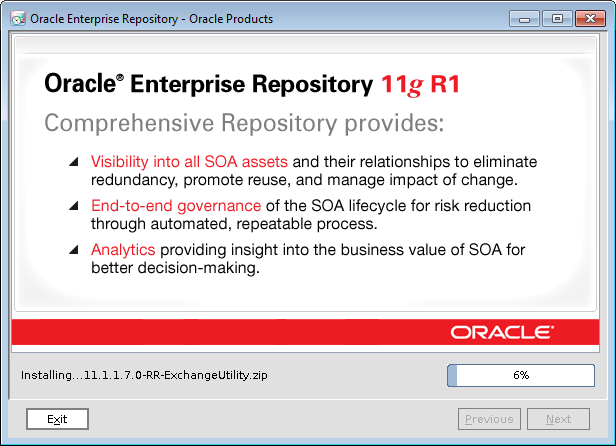
-bash-4.1$ /u01/java/jdk1.7.0_55/bin/java -d64 -jar OER111170_generic.jar

Welcome screen is displayed


Click Next and choose the  existing Middleware Home Directory.


Choose the Products Installation Directories


Specify the information required to initialize Oracle Enterprise Repository for your application server, and click Next. The Configure Database screen is displayed.


Navigate to $WL_HOME/common/bin and run the config script to start the configuration Wizard.


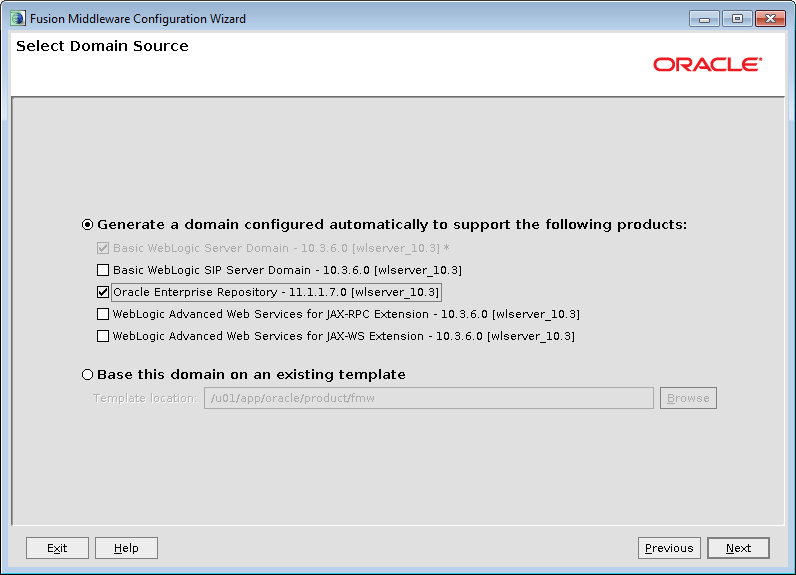
Select the check boxes corresponding to the OER.


Enter the name of the domain and specify the domain location.


 Configure the username and password for the administrator. The username is used to boot the administration server and connect to it.


 Select the WebLogic domain startup mode.


Start the admin server and managed server and the OER is accesible at http://hostname:port/oer